Back
Back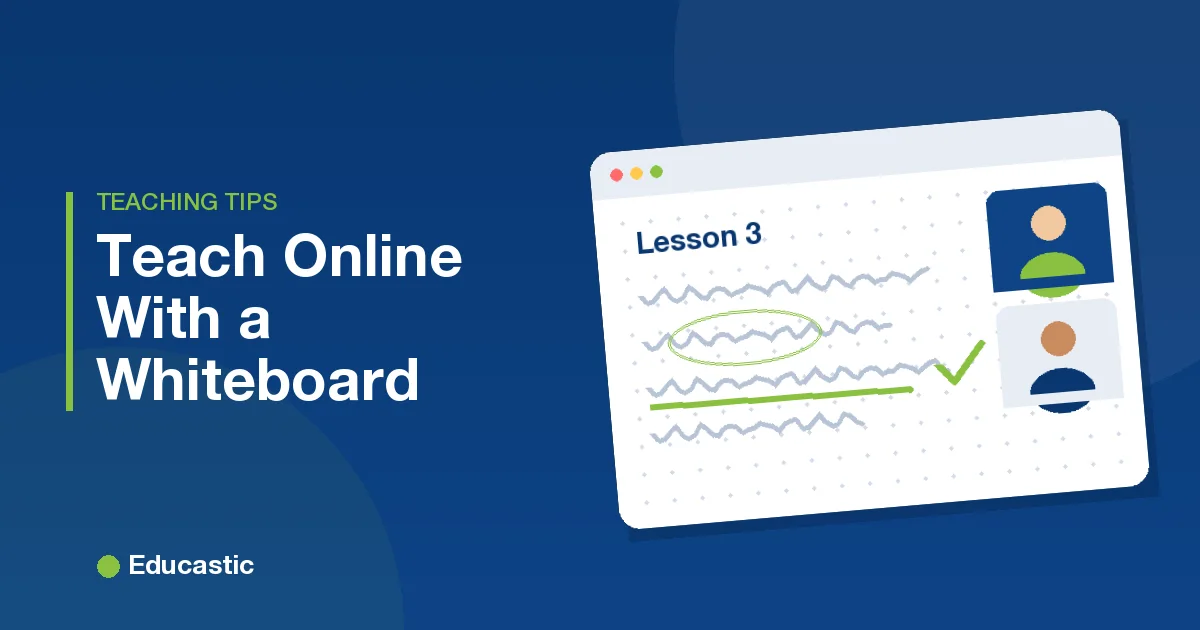
How to Teach Online With a Whiteboard: A Practical Guide

In this article
- What you need before your first class
- Step 1: Prepare the board before students arrive
- Step 2: Structure the lesson around the board
- Step 3: Annotate real materials, not just blank pages
- Step 4: Hand the pen to your students
- Step 5: Record the class
- Five mistakes to avoid
- Frequently asked questions
- Start your first whiteboard class
A physical whiteboard does something a slide deck cannot: it lets students watch an idea being built step by step. When classes moved online, many teachers lost that and fell back on talking over slides. A digital whiteboard brings it back, and adds things a classroom board never had, such as unlimited pages, annotated worksheets and a recording of the whole lesson.
This guide walks through how to set up, structure and run a live online class around a whiteboard, based on how teachers use Educastic every day.
What you need before your first class
You need less than you think:
- A computer and a stable internet connection. A wired connection or a spot close to your router helps more than a faster plan.
- A way to write. A mouse works for diagrams and typed notes. For handwriting and maths, a drawing tablet or a touchscreen laptop with a stylus makes a big difference.
- A headset with a microphone. Students forgive a grainy webcam, but not echoing audio.
- An online whiteboard that includes video. If your board and your video call are separate apps, you will spend the lesson switching windows. On the Educastic online whiteboard, video, chat and screen sharing sit next to the board in the same browser tab, and students join from a link with nothing to install.
Step 1: Prepare the board before students arrive
Open your board ten minutes early and set it up the way you would set up a classroom.
- Pick a background. Dotted or lined grids keep handwriting and graphs straight. Use a plain background for diagrams and mind maps.
- Load your materials. Upload the worksheet, PDF or images you plan to use so they are ready on the board, instead of hunting for files while students wait.
- Create a tab for each part of the lesson. For example: warm-up, new concept, practice, and wrap-up. Switching tabs feels like turning to a clean board.
Step 2: Structure the lesson around the board
A simple structure that works for most subjects:
| Part | Time | What happens on the board |
|---|---|---|
| Warm-up | 5 min | One question on a fresh tab; students answer in chat or on the board |
| Teach | 15 min | You build the idea step by step, talking as you draw |
| Practice | 15 min | Students work on the board or on an annotated worksheet |
| Check | 5 min | A quick poll or question to see who understood |
| Wrap-up | 5 min | Summarise on one tab students can save |
The key habit: write as you speak. Students follow handwriting far better than a finished slide, because they see the order in which the idea comes together.
Step 3: Annotate real materials, not just blank pages
Load the exact worksheet or textbook page students have, and work through it on the board. Circle the key word in a question, underline the step people get wrong, and write the corrected version in a second colour. This turns a passive PDF into a guided explanation.
Step 4: Hand the pen to your students
The fastest way to lose an online class is to make it a lecture. Give students something to do on the board every few minutes:
- Let a student write. In Educastic, you can grant one student access to the annotation tools, then take it back when they are done. They solve the problem in front of everyone.
- Ask for quick answers in chat. Low-pressure for shy students, and you can read every answer at once.
- Run a poll before revealing an answer, so everyone commits to a guess.
Step 5: Record the class
Start a recording at the beginning of the lesson. Students who were absent can catch up, and everyone can rewatch the part they found hard. It also gives you a library of explanations you can reuse.
Five mistakes to avoid
- Writing too small. Zoom in, or write larger than feels natural. Students may be on a phone.
- Filling the whole board. Use a new tab instead of squeezing more onto a crowded page.
- Teaching in silence. Narrate what you are drawing, even when it feels obvious.
- Skipping the tech check. Test your microphone and pen before students arrive.
- Talking for 20 minutes straight. Hand the pen to a student at least every ten minutes.
Frequently asked questions
Do students need to install anything to join a whiteboard class? Not with Educastic. Students join from the class link in their web browser.
Can I use an online whiteboard for free? Yes. Educastic includes all of its teaching features in the free version, including the whiteboard, video, chat, screen sharing and recording.
What is the best device for teaching on an online whiteboard? A laptop or desktop with a drawing tablet or stylus is ideal for handwriting and maths. A mouse is fine for diagrams and typed notes.
How many students can I teach at once? Educastic has been tested with as many as 49 attendees in one session, and more can join.
Start your first whiteboard class
You can run everything in this guide on Educastic for free. Open the online whiteboard, create a class, and share the link with your students.